Introduction
Here’s something most beginner guides skip: there is no single best game engine. There’s only the best one for your game, your team and your budget.
The same goes for every other part of the toolkit. The right tools help you ship faster, avoid rework and keep your team in sync. The wrong ones can cost you weeks.
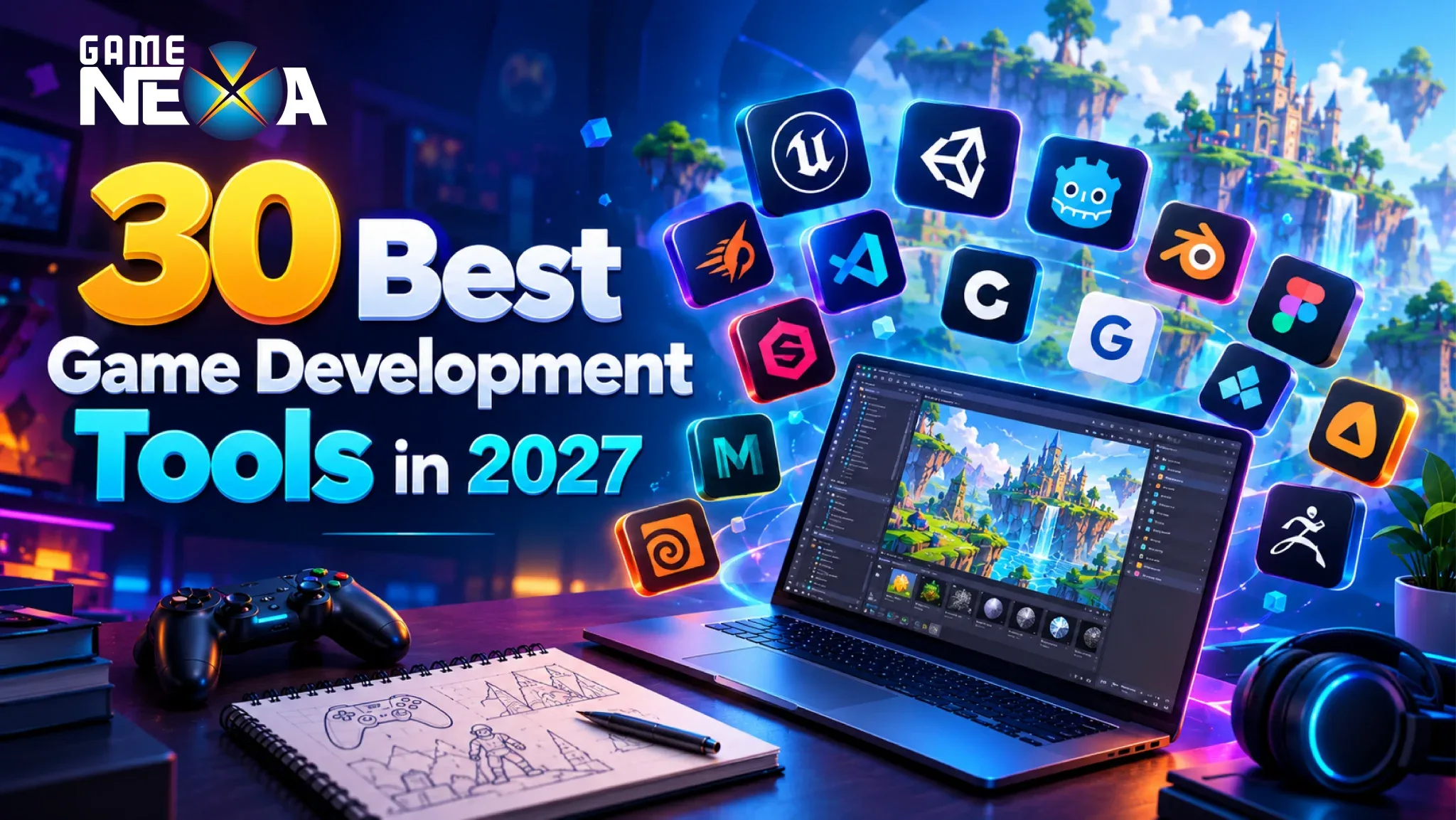
This guide covers 30 of the best game development tools in 2027, from engines and 3D art software to audio, coding and teamwork tools. For each one, you’ll see what it does, who it suits and what to watch out for.
For most teams, a solid starting kit is Unity or Godot for the engine, Blender for 3D art, Visual Studio or Rider for code, Git or Perforce for version control and FMOD or Wwise for audio. The best choice always depends on your game type, team size and budget.
Quick Comparison of All 30 Tools
Pricing and licence terms change often, so always check each tool’s official site before you commit.

Game Engines (Tools 1 to 10)
The engine is the heart of your project. It runs your game, draws the graphics, handles physics and exports to different platforms.
1. Unity
Unity is a general-purpose engine that powers everything from tiny mobile puzzles to large multiplayer games. You build scenes in a visual editor, attach scripts written in C# and press play to test instantly. One project can then be exported to phones, PCs, consoles and VR headsets.

Teams often pick Unity because it’s easy to hire for. Many developers already know C#, and there are thousands of tutorials, plugins and ready-made assets. That makes it a practical choice when you need to move fast, test an idea with real players and grow the project later.
Best for: mobile, casual and cross-platform games, solo developers and small teams
Key features: C# scripting, a visual editor, the Asset Store, built-in animation and UI tools, and profiling tools for mobile performance
Cost: a free tier for small projects and paid plans for larger teams. Terms have changed in the past, so check the current plans.
Worth knowing: Projects can get heavy if you pile on third-party plugins, so keep your setup tidy.
Try this first: a simple 2D runner or match-3 prototype
2. Unreal Engine
Unreal Engine is the engine many studios choose when visuals matter most. It ships with advanced lighting, detailed materials and tools for cinematic cutscenes, so even small teams can reach a polished, realistic look.

You can work in two ways. Programmers write C++ for performance-critical systems, while designers use Blueprints, a visual scripting system, to build game logic without code. This split lets artists and designers prototype ideas without waiting for an engineer.
Best for: realistic 3D games, open worlds and shooters
Key features: Nanite for very detailed geometry, Lumen for dynamic lighting, Blueprints, the Sequencer for cinematics and built-in multiplayer support
Cost: free to start, with a royalty once your game earns above a set amount. Check Epic’s current terms.
Worth knowing: It needs strong hardware and big downloads, and mobile projects need extra optimization.
Try this first: a small third-person level
3. Godot
Godot is a free, open-source engine that stays small and quick. The whole editor is a lightweight download, and projects open in seconds. Everything in a game is built from nodes, which are small building blocks you combine into scenes.

This node-and-scene system is easy to understand, which is why many beginners enjoy it. Because Godot is open source, you can also read and change the engine itself. That freedom matters to teams who want full control and no licence fees.
Best for: 2D games, indie projects and learners
Key features: GDScript (similar to Python), C# support, strong built-in 2D tools, an animation editor and a flexible scene system
Cost: free, under the MIT licence
Worth knowing: 3D features and console publishing need more effort than in Unity or Unreal.
Try this first: a top-down shooter or a simple platformer
4. GameMaker
GameMaker is a 2D-focused engine that has been around for many years. You can build games with drag-and-drop actions, or move to its own scripting language, GML, as you get more confident. Hit indie games like Undertale and Hyper Light Drifter used it.

Its biggest strength is speed. A room editor lets you place objects on layers, and a built-in sprite and animation editor keeps your art tools in one place. For a small team making a 2D game, that means less time juggling software and more time playing and improving the game.
Best for: 2D action games, platformers and solo developers
Key features: a room editor, a sprite editor, GML scripting, built-in physics and easy export to desktop, web and mobile
Cost: free for non-commercial use, with a paid licence to publish. Console export needs a higher tier.
Worth knowing: It’s built for 2D, so 3D projects belong elsewhere.
Try this first: a one-screen arcade game
5. Construct 3
Construct 3 runs entirely in your web browser, so you can start building on almost any computer. Instead of writing code, you create rules using a visual event sheet: when this happens, do that.

That makes it one of the most beginner-friendly engines available, and it’s popular in classrooms. It also exports to web, desktop and mobile, which is handy when you want to share a playable prototype with a friend through a simple link.
Best for: beginners, teachers and quick browser games
Key features: event sheets, ready-made behaviors for movement and physics, a built-in animation editor and instant previews
Cost: a free tier with limits and paid plans for full export options
Worth knowing: Very large games can become hard to manage in event sheets.
Try this first: a simple platformer with coins
6. GDevelop
GDevelop is a free, open-source engine where you build games with simple event rules. You pick an object, choose a condition such as ‘player touches coin’ and add an action such as ‘add 10 points’.

Because it’s easy to read, GDevelop works well for quick prototypes. Designers can test an idea in an afternoon, and teachers can use it to explain game logic without teaching syntax. Finished games can be exported to the web and to mobile.
Best for: prototypes, learning and small 2D games
Key features: an event system, a scene editor, ready-made behaviors and easy publishing to the web
Cost: free to use, with paid plans for extra online services and exports
Worth knowing: Larger or very complex projects may eventually need an engine with more advanced tools.
Try this first: a tap-to-score arcade game
7. Defold
Defold is a free engine built for small file sizes and steady performance. Its games load quickly and run well even on older phones, which makes it a smart choice when many of your players use budget devices.

You write game logic in Lua, a light and readable language. The editor can push changes to a running game, so you see your edits without restarting. Defold is maintained by the non-profit Defold Foundation.
Best for: lightweight mobile and web games
Key features: Lua scripting, hot reload, fast builds, 2D and 3D support and wide platform export
Cost: free
Worth knowing: The community and asset library are smaller than Unity’s.
Try this first: a casual tap game for mobile and web
8. Cocos Creator
Cocos Creator is an engine popular for mobile and mini games, especially in Asia. It supports both 2D and 3D and uses TypeScript, a typed version of JavaScript that many web developers already know.

Its runtime is small, which helps games start fast and stay within the strict size limits of some platforms. If you plan to ship lightweight casual games to mobile and web, Cocos Creator is worth a close look.
Best for: casual mobile games, web games and mini-program games
Key features: a visual editor, TypeScript scripting, quick previews and small build sizes
Cost: free to use
Worth knowing: Most community resources focus on its main regions, so English tutorials can be harder to find.
Try this first: a simple match game
9. RPG Maker
RPG Maker is built for one job: making classic 2D role-playing games. It comes with maps, characters, enemies, items and a battle system already in place, so you can focus on your story and world.

You design maps by placing tiles, set up characters and skills in a database, and use events to trigger conversations and quests. Plugins written in JavaScript let you extend the engine when you need something unique.
Best for: story-driven RPGs and solo creators
Key features: a tile map editor, a database for stats, an event system, premade art and music and plugin support
Cost: paid, with a free trial
Worth knowing: Premade assets can make games look alike, so add your own art when you can.
Try this first: a short village-to-dungeon adventure
10. Open 3D Engine (O3DE)
Open 3D Engine, or O3DE, is a free, open-source 3D engine supported by the Open 3D Foundation. It grew out of Amazon’s Lumberyard and is designed as a set of modules, so you can switch parts on or off.

That modular design suits large or specialized projects, such as simulations and online games. The trade-off is complexity. You need solid programming skills to get the most from it.
Best for: advanced 3D projects, simulations and technical teams
Key features: modular systems, the Atom renderer, scripting with C++, Lua and Python and cloud-friendly tools
Cost: free, under an open-source licence
Worth knowing: It has a smaller community and a steeper learning curve than the major engines.
Try this first: a small 3D environment demo
3D Art, 2D Art and Animation Tools (Tools 11 to 18)
Your engine runs the game, but these tools create what players see.
11. Blender
Blender is a complete 3D creation suite that costs nothing. You can model characters, sculpt details, paint textures, rig skeletons, animate and render, all inside one program.

For game teams, that means one tool can cover most of the art pipeline. Blender exports to common formats like FBX and glTF, so your models travel easily into Unity, Unreal or Godot. A huge library of add-ons fills any gaps.
Best for: indie artists and small studios
Key features: modeling, sculpting, rigging, animation, UV tools and a large add-on library
Cost: free and open source
Worth knowing: It has many tools, so learning in small stages helps.
Try this first: a stylized prop, such as a treasure chest
12. Autodesk Maya
Maya is a long-standing professional tool for 3D animation. Studios across film and games rely on it for character rigs, motion and complex scenes.

Its rigging and animation tools are especially deep, which is why animation teams often prefer it. Maya also supports scripting with Python and MEL, so technical artists can automate repeat tasks and build custom tools.
Best for: character animation and large studio pipelines
Key features: advanced rigging, animation editors, scripting and wide plugin support
Cost: paid subscription
Worth knowing: It isn’t beginner-friendly and can be costly for very small teams.
Try this first: a simple walk cycle on a ready-made rig
13. Autodesk 3ds Max
3ds Max is a Windows-based 3D tool known for modeling props, vehicles and environments. Its modifier stack lets you pile changes onto a model and adjust them later without starting over.

That non-destructive style suits hard-surface art such as weapons, machines and buildings. Many studios also use it for scene assembly because of its large plugin ecosystem.
Best for: environment and hard-surface artists
Key features: the modifier stack, polygon modeling, scripting and plugins
Cost: paid subscription
Worth knowing: It runs on Windows only and works best on a powerful computer.
Try this first: a sci-fi crate or a small building
14. ZBrush
ZBrush is the digital sculpting tool artists reach for when they want fine detail. You push, pull and carve a model almost like clay, adding skin pores, scars and fabric folds that would be painful to model by hand.

Games can’t run those millions of polygons directly. Artists therefore sculpt in ZBrush, then create a lighter version of the model and bake the detail into textures. This is how characters look rich without slowing the game down.
Best for: character and creature artists
Key features: high-detail sculpting, custom brushes, polygroups and tools for creating lighter game-ready meshes
Cost: paid
Worth knowing: The interface feels unusual at first.
Try this first: a stylized character head
15. Substance 3D Painter
Substance 3D Painter lets you paint textures directly on a 3D model, much like painting a real object. Instead of one flat layer, you stack materials and masks, just like layers in an image editor.

Smart materials react to the shape of a model. For example, rust can collect in crevices and edge wear can appear on corners. That saves hours and gives props a believable, realistic finish.
Best for: realistic props, weapons and characters
Key features: layered painting, smart materials, baking tools and export presets for major engines
Cost: paid subscription through Adobe
Worth knowing: Realistic results still need good models and clean UVs.
Try this first: texture a rusty barrel
16. Krita
Krita is a free painting program made by artists for artists. It offers a large brush collection, flexible layers and a clean, customizable workspace.

Game teams use it for concept art, character sheets, backgrounds and UI elements. It also has frame-by-frame animation, so you can create short effects and cartoon-style animations without extra software.
Best for: concept art, UI art and hand-drawn animation
Key features: brush engines, many layer types, an animation timeline and Python scripting
Cost: free and open source
Worth knowing: It isn’t meant for photo editing.
Try this first: a character design sheet
17. Aseprite
Aseprite is a small, focused tool for pixel art and sprite animation. It shows your animation timeline, your canvas and your color palette in one simple view.

Pixel art is all about control over every dot, and Aseprite makes that easy. Onion skinning lets you see ghosted frames before and after the one you’re drawing, so walk and attack animations flow smoothly. You can export sprite sheets that engines like Godot and Unity read directly.
Best for: retro-style 2D games and sprite artists
Key features: onion skinning, palette tools, tilemap support and sprite sheet export
Cost: low-cost paid tool
Worth knowing: It’s specialized for pixel art, not painting or 3D.
Try this first: an 8-frame run cycle
18. Cascadeur
Cascadeur is a 3D animation tool that understands physics. When you pose a character mid-jump, it helps check that balance, weight and momentum look believable.

That’s helpful for fighting, parkour and other action moments where unnatural movement is easy to spot. Cascadeur also includes AI-assisted posing that suggests natural poses, and it exports animations to engines like Unity and Unreal.
Best for: action, combat and stunt animation
Key features: physics-based posing, AI-assisted tools, keyframe editing and FBX export
Cost: a free tier and paid plans. Check the current limits.
Worth knowing: It’s a specialist tool, so most teams use it alongside Blender or Maya.
Try this first: a simple jump-and-land animation
Audio Tools (Tools 19 to 21)
Great sound makes a game feel alive. These tools help you create, edit and trigger audio.
19. Wwise
Wwise is audio middleware that sits between your sound files and your game engine. Instead of hard-coding every sound, sound designers build rules in Wwise, and the game simply tells it what’s happening.

For example, the music can shift from calm to tense when enemies appear, and footsteps can change when the player walks from stone to grass. Designers can do this without waiting for programmers. Spatial audio tools also make sounds feel like they come from the right direction.
Best for: sound-heavy and large games
Key features: interactive music, spatial audio, real-time parameters and plugins for Unity and Unreal
Cost: a free tier for small projects and paid licences for larger budgets. Check the current terms.
Worth knowing: It takes time to learn, so small teams may prefer FMOD.
Try this first: footsteps that change with the surface type
20. FMOD Studio
FMOD Studio is audio middleware that looks and feels like a music editing program. Sounds are organized into events on a timeline, with parameters that change how they play.

Its friendly workflow makes it popular with small teams and for prototypes. You can create dynamic music, layered sound effects and smooth transitions, then hook them up to Unity or Unreal with ready-made plugins.
Best for: indie teams and fast prototypes
Key features: event-based design, a timeline editor, parameters and engine plugins
Cost: a free tier for small projects and paid per-title licences. Check the current terms.
Worth knowing: Very large productions may prefer the deeper tools in Wwise.
Try this first: a dynamic music track that adds drums when combat starts
21. Audacity
Audacity is a free audio editor that does the everyday jobs well. You can record voices, trim clips, remove noise, change volume and convert files.

Many small teams use it to clean up recorded sound effects or voice lines before sending them into an engine or middleware. It supports common formats like WAV and MP3, so it fits into almost any workflow.
Best for: quick edits, voice recordings and beginners
Key features: multi-track editing, noise reduction, built-in effects and a spectrogram view
Cost: free and open source
Worth knowing: It isn’t made for composing music or complex mixing.
Try this first: record and clean up a short voice line
Code Editors (Tools 22 to 24)
Your code editor is where programmers spend most of their day.
22. Visual Studio
Visual Studio is Microsoft’s full-featured code editor and debugger. It understands your code, suggests completions, finds errors as you type and lets you pause the game to inspect what’s happening.

It works closely with Unity, which is why many C# developers use it every day. On larger projects, its debugging tools can save hours when you’re chasing a stubborn bug.
Best for: C# and C++ developers
Key features: IntelliSense code suggestions, a strong debugger, profiling tools and extensions
Cost: a free Community edition and paid tiers for larger teams
Worth knowing: It’s a big install and mainly designed for Windows.
Try this first: set a breakpoint and step through a player-movement script
23. JetBrains Rider
JetBrains Rider is a cross-platform code editor made for .NET and game development. It reads your whole project and flags common mistakes before you run the game.

It understands Unity and Unreal-specific code, so it can warn you about slow patterns and help you navigate large codebases. Developers on Windows, macOS and Linux can all use it.
Best for: Unity and Unreal programmers
Key features: engine-aware code checks, fast search and refactoring, a built-in debugger and Git tools
Cost: free for non-commercial use and paid for commercial use
Worth knowing: It can feel heavy on older computers.
Try this first: open a Unity project and use its quick fixes on your scripts
24. Visual Studio Code
Visual Studio Code is a light, fast and free editor. On its own it’s simple, but thousands of extensions can add support for almost any language.

That flexibility makes it ideal for web games, Godot scripting and quick edits. You can open a project, install an extension and start working within minutes.
Best for: web games, scripts and lightweight work
Key features: extensions, built-in Git, an integrated terminal and a fast start-up
Cost: free
Worth knowing: Large C# or C++ projects often work better in a full IDE.
Try this first: set up a small browser game with JavaScript
Version Control and Teamwork (Tools 25 to 27)
Version control saves every version of your project, so nothing gets lost and teams can work together safely.
25. Git and GitHub
Git records every change you make to your project, so you can go back to an earlier version if something breaks. GitHub hosts your project online so a team can share it.

Developers create branches to try new features safely and review each other’s work through pull requests. It’s the standard way software teams stay in sync.
Best for: code, scripts and small teams
Key features: branches, pull requests, full history and issue tracking
Cost: Git is free, and GitHub has free and paid plans
Worth knowing: Large art files need Git LFS or a different system.
Try this first: create a repository for your prototype and save your work every day
26. Perforce Helix Core
Perforce Helix Core is version control built for large projects. Where Git can struggle with huge textures, audio and models, Perforce handles them with ease.

It also lets people lock files, so two artists don’t edit the same model at once. Large studios often use it for that reason, and it provides detailed permissions for big teams.
Best for: art-heavy and AAA-scale projects
Key features: strong binary file handling, file locking, fine-grained permissions and engine integrations
Cost: free for small teams and paid for larger ones
Worth knowing: Setup takes more effort than GitHub.
Try this first: set up a small depot with one artist and one programmer
27. Unity Version Control
Unity Version Control, once known as Plastic SCM, is built for game projects. It handles big files well and gives artists a friendly interface instead of command-line tools.

A visual branch explorer shows how work is progressing, and file locking prevents conflicts on assets that can’t be merged. It works well with Unity and can also be used with other engines.
Best for: teams with both programmers and artists
Key features: visual branches, file locking, good large-file handling and cloud hosting
Cost: a free tier for small teams and paid plans for bigger ones. Check the current limits.
Worth knowing: Teams that already use Git may not want to switch.
Try this first: have an artist and a programmer work in parallel branches
Game Design and Story Tools (Tools 28 to 30)
These tools help you plan how your game works before you build it.
28. Machinations
Machinations is a browser-based tool that lets you draw and simulate a game’s economy. You map how coins, gems and experience points flow, then press play to see what happens.

It’s great for spotting problems early. Maybe players earn too fast, or a shop item makes the game too easy. You can fix the numbers on a diagram long before anyone writes code.
Best for: free-to-play and progression-heavy games
Key features: node-based diagrams, simulations and shareable models
Cost: a free tier and paid plans
Worth knowing: It models systems only, so the real game is built elsewhere.
Try this first: model a simple coins-and-upgrades loop
29. Articy
Articy:draft is a planning tool for stories, dialogue and quests. Writers can map branching conversations as flow charts and keep track of characters, places and items in one database.

You can test how a conversation flows before any code exists, which helps prevent plot holes. When it’s ready, you can export your story data to engines such as Unity and Unreal.
Best for: story-rich RPGs and narrative games
Key features: dialogue flow charts, variables and conditions, a content database and engine exporters
Cost: paid, with a free trial
Worth knowing: It’s overkill for very short or simple stories.
Try this first: map a three-choice conversation with a villager
30. Twine
Twine is a free tool for making interactive stories. You write passages of text and link them together, and Twine draws a map showing how the story branches.

Finished stories export as a simple web page, so anyone can play them in a browser. Many designers use Twine to prototype narrative ideas quickly, long before they commit to a full engine.
Best for: text adventures and narrative prototypes
Key features: a visual story map, multiple story formats, HTML export and optional CSS and JavaScript for custom looks
Cost: free and open source
Worth knowing: It isn’t suited to graphics-heavy or physics-based games.
Try this first: a five-passage mystery
How to Choose the Right Game Development Tools
With so many options, it helps to follow a simple process.
Start with your game. 2D or 3D? Mobile, PC or console? A cute puzzle game and a realistic shooter need very different tools.
Check your team’s skills. The best tool is often the one your team already knows. A powerful engine won’t save time if no one can use it well.
Set your budget. Many excellent tools are free. Others are priced by subscription, revenue share or per title. Read the licence terms carefully.
Make sure your tools work together. Test how art, audio and code move into your engine before you commit. A bad export can damage asset quality.
Look at the community. A big community means more tutorials, plugins and answers when you get stuck.
Run a small test. Build a tiny prototype with your shortlist. A few days of testing can save months later.
Sample Toolkits by Team Type
If you are…A sensible starter toolkitA solo indie developer on a budgetGodot, Blender, Krita, Audacity, VS Code, Git and GitHubA small mobile game studioUnity, Blender, Aseprite or Krita, FMOD, Visual Studio or Rider, Git and GitHubA studio making a realistic 3D gameUnreal Engine, Maya or Blender, ZBrush, Substance 3D Painter, Wwise, Rider, PerforceA team making a story-driven gameUnity or Godot, Articy:draft or Twine, Blender, FMOD, Git and GitHubA team building a free-to-play gameUnity, Machinations, Blender, FMOD or Wwise, Rider, Unity Version Control
Common Mistakes When Picking Game Tools
Choosing the most popular tool by default. Popular isn’t always best for your game.
Ignoring licence terms. Revenue limits and royalties can change your profits later.
Using too many tools at once. Every extra tool adds learning time and export problems.
Skipping version control. One bad file overwrite can cost days of work.
Switching engines mid-project. It’s possible, but it’s almost always expensive.
Forgetting about audio. Many teams think about sound last. It’s better to plan it early.
Want to see how these tools fit into a full project? Read our guide to the game development process. Planning a schedule? See how long it takes to make a mobile game.
Why Build Your Game With Gamenexa
Gamenexa is a game development and iGaming software company with 11 years of experience, 60+ clients and 200+ projects delivered. We help founders and studios choose the right tools and build games that run smoothly.
What you get:
The right tools for your game. We recommend engines and tools based on your goals, not hype.
Experience across game types. Casual, multiplayer, skill-based and iGaming products.
A clear process. Stages, milestones and regular builds.
Support after launch. Updates, fixes and new content.
Not sure which tools you need? Explore our game development services or talk to our team. If you’re still looking for a partner, our guide on how to choose the right game development company can help.
What are the best game development tools for beginners?
Item cGodot, GDevelop, Construct 3 and Unity are all friendly for beginners. Pair one with Blender for 3D art or Krita for 2D art, and use Git and GitHub to save your work.ontent. Click the edit button to change this text.
What is the best free game development software?
Which game engine is best for mobile games?
What tools do professional game developers use?
Do I need to know how to code to make a game?
What is the difference between a game engine and a game framework?
Which tools are best for 2D games?
How do I choose between Unity and Unreal Engine?
Conclusion
The best game development tools are the ones that fit your game, your team and your budget. You don’t need all 30 of them. Most projects only need an engine, one or two art tools, an audio tool, a code editor and version control.
Start small, test your picks with a quick prototype and add tools only when you really need them.
Ready to turn your idea into a game? Get in touch with Gamenexa and let’s plan it together.